


AI Photo Editor: Photo Enhance
4.022.00 Reviews
App Specs
- Version
- v1.0.1_20260710
- Updated On
- License
- Free
- Downloads
- 1,000,000+
- Developer
- Amobear Application - AILABS.
- Categories
- Beauty
- Platform
- Android
Screenshots
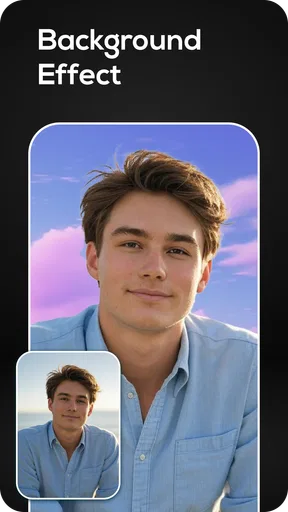
 Analysis by AppCompare
When I look at a photo editor through an inclusive-use lens, I care less about flashy promises than about whether a person can understand the next step, make a careful adjustment, and judge the result without feeling rushed. AI Photo Editor: Photo Enhance is a beauty-category app from AMOBEAR TECHNOLOGY GROUP, and its appeal is straightforward: it is aimed at people who want to improve an image without learning a complex editing workflow. That simplicity can be helpful, but it also makes the details of the task matter. Restoring an old portrait, cleaning up a casual selfie, and preparing a photo for a small screen are different jobs, and a quick automatic treatment will not suit all of them equally well.
Readable steps matter more than a long tool list
The experience is built around accessible, familiar editing ideas rather than a professional studio full of controls. For someone who finds layered editing panels confusing, that lower learning curve is a real advantage: you can focus on the image instead of first learning a technical vocabulary. I would approach each edit as a small decision—choose a photo, try an enhancement, inspect the change, then decide whether a filter or portrait treatment helps. That deliberate rhythm is more useful than tapping every option just because it is there.
At the same time, “simple” does not automatically mean equally clear for everyone. People who prefer larger text, high contrast, spoken guidance, or predictable button placement should check how the app feels on their own device before committing to a longer editing session. I would not assume that an easy dashboard removes the need to inspect labels and results. A practical test is to open a photo you do not mind experimenting with and see whether you can identify the main action, compare the edited image with the original, and back out of a change comfortably.
One-tap editing still calls for a careful eye
Automatic enhancement is useful when small controls are tiring or fiddly, and it can make a quick improvement possible with fewer decisions. That is especially welcome if you have limited dexterity or simply want to avoid repeated pinching and dragging. But fewer gestures also mean less direct control: if an automatic result looks too sharp or changes the mood of a face, you may prefer a conventional editor that lets you adjust separate values gradually. I would use the enhancement as a starting point, not as an unquestionable final answer.
Sensory preferences matter too. A high-detail result can make a soft or grainy image look clearer, yet aggressive sharpening may create an artificial edge that some viewers find distracting. Filters can also shift the color and atmosphere of a picture more than expected. For a family photo or a portrait that needs to remain recognizable, I recommend checking skin tones and fine details before saving or sharing. If visual comparison is tiring, take a short pause between the original and edited versions rather than making the call after staring at the same image for too long.
Useful in everyday situations, with realistic expectations
This kind of editor makes the most sense when the goal is modest and immediate: improving a dim selfie, bringing a little clarity back to a familiar picture, or making a casual image look more presentable before sharing it. It is less suitable when you need exact color matching, careful retouching for professional work, or a reliable reconstruction of details that were never captured in the original. Enhancement can make existing information easier to see; it cannot guarantee that missing detail will become authentic.
There is also a useful way to judge whether a result is genuinely better: look at the image at the size where it will actually be used. A portrait that seems impressively crisp when enlarged may look harsh as a small profile image, while a subtle adjustment can hold up better on a phone screen. I would keep an untouched copy and compare both versions before sharing. That gives you a simple escape route if the AI treatment has changed a face, texture, or color more than you intended.
Worth Reading Before You Choose

Flipboard Shows What News Apps Must Do Beyond the Feed

Switching to Android Auto Means Rethinking Your Driving Routine

Google Calendar Makes a Crowded Week Easier to Manage

Ludo King Makes the Most of the Minutes Between Plans

Baby Panda World Brings Quick Play to Modern Phones, but Its Game Library Feels Busy

ESPN’s Live Game View Makes Following Close Games Easier
Who is likely to feel at home here?
I can see this app suiting casual users who want an approachable route into photo improvement, especially people who would rather try a guided enhancement than learn a full manual editor. It may also help someone preparing a quick image for a message or personal album, provided they are comfortable checking the result themselves. It is a weaker fit for users who depend on extensive manual control, need a specific accessibility setup, or want a consistent professional workflow across many images.
The app is free to download and is rated for Everyone. It has a 4.1 average from around 2.7 thousand ratings, with over a million installs, which suggests that many people have tried it, but popularity alone cannot tell you whether its editing style suits your eyes or your needs. The current version is 0.0.4.3_03112025, and it supports Android 8.0 and newer. Optional in-app purchases range from $5.99 to $49.99 per item, so I would explore the free experience first and only consider paying if a feature you personally need is clearly available there.
Bringing Your Photos to Life
So, what’s the deal with AI Photo Editor: Photo Enhance? At its core, it’s all about using artificial intelligence to breathe new life into your images. With features that range from basic adjustments to more sophisticated enhancements, it’s like having a mini Photoshop in your pocket. I’ve tried it on a few of my grainy vacation photos, and the results were nothing short of impressive. Suddenly, those hazy beach shots looked like they were taken with a pro camera!
Simplified Editing for Everyone
No need for a degree in graphic design here! The app is designed to be user-friendly, with a dashboard that’s intuitive and easy to navigate. Whether you’re adjusting brightness, contrast, or applying filters, it feels like a natural process. There’s something incredibly satisfying about watching your photos transform with just a few taps.
"I was amazed at how quick and seamless the edits were. Definitely a game-changer for casual photographers!"
Features That Stand Out
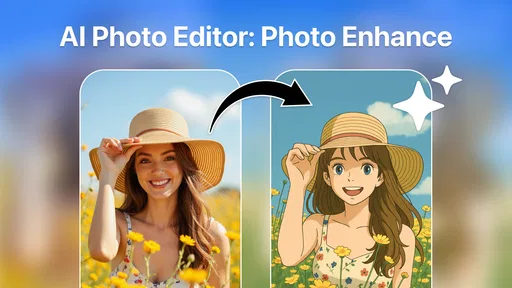
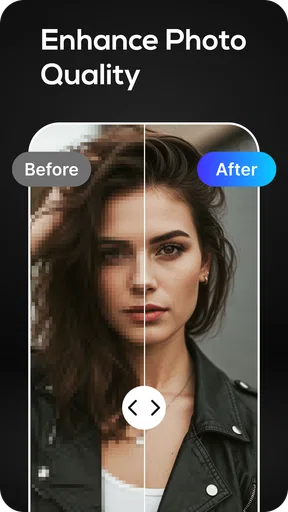
One of the standout features has to be the enhance function. It’s like magic – the AI algorithm works to sharpen details, reduce noise, and even restore colors to make your photos pop. Then there’s the portrait mode, which is perfect for giving your selfies that professional touch. And don’t even get me started on the one-click filters. It’s like Instagram filters on steroids!
- AI-based enhancement for clarity and detail.
- Easy-to-use filters for instant transformations.
- Portrait mode for stunning selfies.
What’s the Catch?
Like any app, this editor isn’t without its quirks. Some users might find the ads a bit intrusive, but hey, that’s the trade-off for a free app, right? And while the basic features are free, more advanced options are tucked behind a paywall. If you’re serious about photo editing, it might be worth the investment.
The app also occasionally struggles with extremely low-resolution photos. But honestly, that’s expected – even the best AI can only do so much with limited data. It’s a minor hiccup in an otherwise smooth experience.
Making the edit fit the moment
For a realistic everyday example, imagine finding an old beach photo in your camera roll just before sending it to a relative. I would first try the enhancement on a copy or keep the original untouched, then inspect the horizon, faces, and areas of sand or sky where sharpening can look uneven. If the image is going into a family chat, a natural result matters more than maximum crispness. For a small social profile picture, I would also check the crop at its final size; details that look pleasing when zoomed in can become distracting once the image is reduced.
That workflow also helps answer a common practical question: should you enhance every picture? I would not. A clear, well-lit image may need no intervention, and applying extra processing can make it look less natural. The app is most valuable when there is a visible problem to address, such as softness or noise, rather than as an automatic step for the entire camera roll. Selecting only the photos that benefit saves time and makes it easier to notice when an edit has gone too far.
How it sits beside other editing choices
Compared with a general-purpose editor, the attraction here is the promise of a quicker route from an imperfect photo to a more polished one. Traditional editors tend to be a better choice when you want to tune exposure, color, crop, and detail independently, or when a specific look must be repeated precisely. A social network’s built-in tools may be enough for a quick crop or decorative filter, but they are not necessarily the best first stop for a soft older image that needs careful enhancement. I would choose this app for a fast improvement, then switch tools if I found myself wanting fine-grained control.
There is a trade-off in letting AI make much of the decision. It can reduce effort, but the software’s idea of “better” may not match the photographer’s intention. A soft, slightly faded picture may be valuable because it preserves a particular atmosphere, while a stronger treatment can make it look cleaner but less personal. My tip is to decide what the photo is for before editing: restoration for legibility, a flattering selfie, and a faithful family record call for different levels of change.
Choosing without pressure
AMOBEAR TECHNOLOGY GROUP’s app is worth trying if you want a simple beauty-oriented editor and are happy to judge results by eye. The rating and install figures offer a rough sense of reach, not a guarantee of comfort, accessibility, or image quality on every device. If you rely on specific assistive settings or have difficulty distinguishing subtle visual changes, test a low-stakes photo first and see whether the controls and before-and-after comparison work for you. Anyone who needs precise retouching or a dependable, repeatable production process will likely be better served by a more manual tool.
For me, the best reason to keep an editor like this around is convenience, not the idea that every imperfect image can be transformed into a professional photograph. The free starting point makes it reasonable to see whether the workflow fits, while the optional purchases are worth considering only after you know which capability you need. Keep originals, check faces and textures, and stop when the picture looks right at its intended size. Used with that bit of restraint, it can be a friendly option for everyday touch-ups; if ease of access or fine control is essential, your own hands-on test should decide.
Final Thoughts
All in all, this is a solid choice for anyone looking to give their photos a quick and easy makeover. It’s a blend of accessibility and powerful features that makes it a standout in the crowded world of photo editing apps. So, if you’re looking to bring your photos to life with a touch of AI magic, give this app a try. You might just find it’s the editing tool you didn’t know you needed.
Pros
- Enhances photo quality with AI precision.
- User-friendly interface for easy editing.
- Supports various image formats.
- Quick processing time for edits.
- Includes advanced filters and effects.
Cons
- Limited free features
- requires subscription.
- Occasional lag with high-resolution images.
- No offline editing capabilities.
- Some features require in-app purchases.
- Limited social media integration options.
FAQs for AI Photo Editor: Photo Enhance
What can AI Photo Editor: Photo Enhance do for my photos?
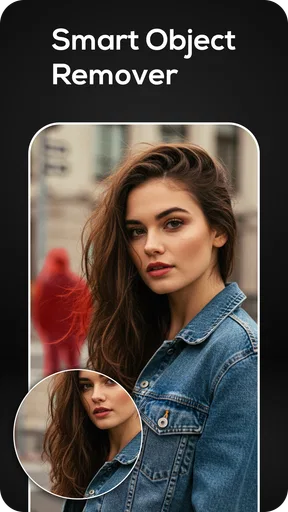
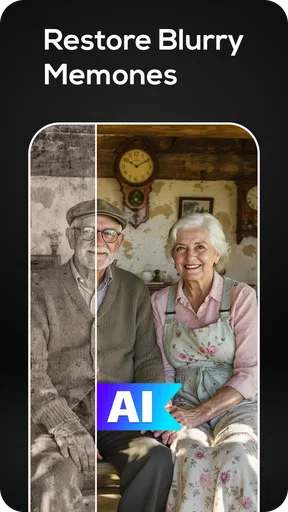
AI Photo Editor: Photo Enhance is designed to improve the quality of your photos using advanced AI technology. It can enhance image resolution, adjust colors, remove noise, and sharpen details. Whether you are looking to fix old photos or enhance new ones, this app offers a range of tools to make your images look professional.
Is AI Photo Editor: Photo Enhance user-friendly for beginners?
Yes, AI Photo Editor: Photo Enhance is designed with an intuitive interface, making it accessible for beginners. The app provides easy-to-follow instructions and one-click enhancement options, allowing users to quickly improve their photos without needing prior editing experience. This makes it a great choice for both novice and experienced users.
Does AI Photo Editor: Photo Enhance support batch editing?
AI Photo Editor: Photo Enhance supports batch editing, which allows users to apply enhancements to multiple images simultaneously. This feature is particularly useful for photographers or users with large photo collections, as it saves time and ensures consistency across edited images. Just select the photos you want to enhance, and the app will handle the rest.
Are there any in-app purchases or subscriptions required?
AI Photo Editor: Photo Enhance offers a free version with basic features. However, for access to advanced tools and capabilities, users may need to purchase a subscription or make in-app purchases. These options provide enhanced functionality and additional editing tools for those looking to maximize their photo editing experience.
What platforms is AI Photo Editor: Photo Enhance available on?
AI Photo Editor: Photo Enhance is available for both Android and iOS platforms. Users can download the app from the Google Play Store for Android devices or the Apple App Store for iOS devices. It is compatible with a wide range of smartphones and tablets, ensuring accessibility for most users.


